
Free Book Templates for your Manuscript
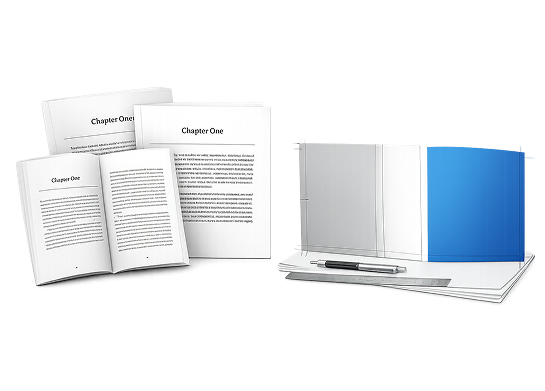
Download a Free Microsoft Word Book Template
These book templates are set-up for Microsoft Word and have the correct page size and margins already set-up for you to use. Download the correct page size template you want to use:
How to Create a Book Template in Microsoft Word
If you already have your manuscript typed, then you can watch our video tutorial below to learn how to set-up the page size and margins to create your own book template. You can use this same tutorial to create a custom size book template as well. This video walks you through setting up the book template margins and the correct page size for your book:

Instructions
If having difficulties viewing the video you may view on YouTube. Follow these instructions to set up a book template:
- Go to Page Layout and select "Margins."
- Select "Custom Margins."
- Select "Mirror Margins" under Multiple Pages.
- Adjust the margin values to match the following:
- Top: .5
- Bottom .5
- Inside: .8
- Outside: .5
- Gutter: 0
- Select "Portrait" under Orientation.
- Select "Whole Document" under Apply To.
- Switch over to the Paper tab.
- Adjust the height and width to match the paper size your book will be printed in.
- Select "OK" to save the changes.
Setting up Bleeds for Your Interior Book Template
If you want the interior pages to bleed (where the artwork goes right to the edge of the paper) and are using Microsoft Word, or any other word processing program, you will need to add .125" to each side of the document to accommodate for the excess paper that will be trimmed off.
For example: If you want a 5.5" x 8.5" finished trim size, you will need to add .125" to all four sides of your document, which will create a 5.75" x 8.75" page size. We will trim off .125" from each side to give you a finished trim size of 5.5" x 8.5".
For a professional interior book layout, we recommend that you keep any elements you don't want trimmed off, at least a .5" from the top, outside, bottom, and .8" from the binding side of the book. Also remember to select Mirror Margins, when setting up your custom page size in Microsoft Word.


Book Marketing Education Services
If you are using Microsoft Word, or any other word processing program, it can be very difficult to set up bleeds correctly and have everything line up evenly throughout the interior of the book. We suggest using a more robust piece of software like Adobe InDesign. Adobe does offer a free trial for 30 days, and has monthly plans as well.
If you are using a page layout program like
Adobe InDesign, and want certain pages to bleed, you will need to include the bleeds and crop marks when you export your file as a PDF file. Adobe offers a great
help section on how to set-up your document with bleeds using InDesign.
Pro Tip: When using any Adobe product to export PDF's, always use the PDF/x-1a:2001 setting. This setting will alert you to any low resolution images and embed all of your fonts as well.